
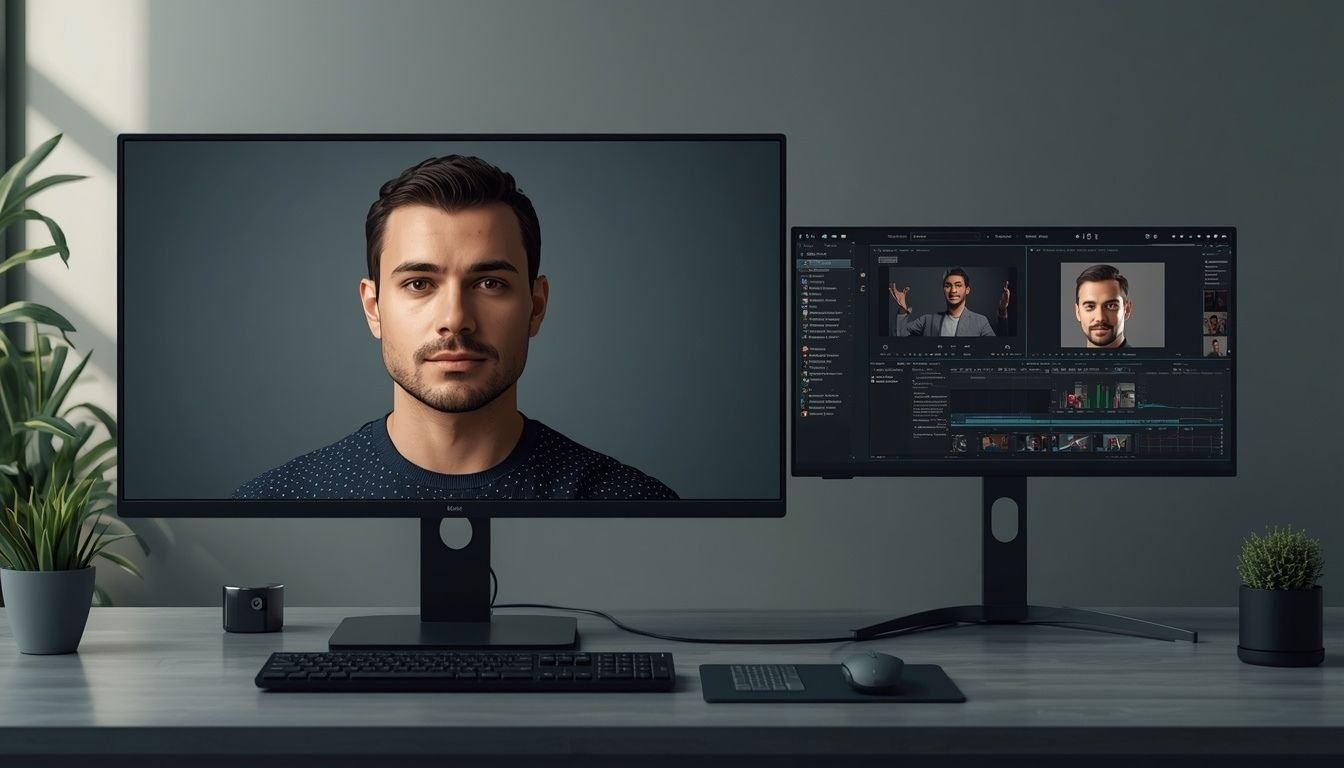
The comfyui video to live avatar heygen workflow combines AI video generation with HeyGen’s avatar technology to create a digital character that can eventually interact with users in real time.
The process involves two distinct stages. ComfyUI generates or refines the character footage. HeyGen then processes suitable footage through its LiveAvatar creation workflow. Once approved and configured, the avatar can serve as an interactive digital presenter.
The key distinction is that generating a video of a talking character is not the same as creating a live conversational avatar. A prerecorded video can follow a script, but a LiveAvatar is designed to respond during an interactive session.
Understanding that difference helps you choose the right tools and avoid generating footage that cannot be used for your intended purpose.
Facts for the ComfyUI and HeyGen Workflow
| Requirement | Practical specification |
|---|---|
| Character creation | Generate a consistent character in ComfyUI |
| LiveAvatar video duration | At least 2 minutes |
| Listening section | 15 seconds of silent, engaged expressions |
| Talking section | 90 seconds of clear speech |
| Idle section | 15 seconds of silent, neutral behavior |
| Video resolution | 1920 × 1080 HD for video-based creation |
| Camera framing | Chest-up with a clearly visible face |
| Background | Static background or properly prepared green screen |
| Final result | A reusable avatar subject to platform approval |
| Processing time | Custom avatar processing may take approximately 24 hours |
These recording specifications apply to the video-based LiveAvatar workflow. Check the current upload requirements in your account before exporting.
Step 1. Create a Consistent Character in ComfyUI
Start by generating the character you want to use for your digital presenter.
Your first goal is not cinematic quality. It is a stable character that looks like the same individual throughout the entire video.
Choose the character’s appearance
Define the following details before generating motion:
- Facial structure and skin tone
- Hairstyle and clothing
- Background and lighting
- Camera angle and framing
- Natural facial expressions
Use a reference image or a consistent character-generation workflow to reduce changes between frames.
A useful starting prompt is:
A realistic AI presenter seated and facing the camera. Consistent facial features, natural skin texture, neutral professional clothing, soft even studio lighting, static background, chest-up framing, direct eye contact, subtle natural facial expressions, realistic speaking motion, no camera movement.
This prompt is a starting point rather than a guarantee of identity consistency. The result depends on the model, reference conditioning, and video workflow you use.
Generate motion suitable for an avatar
Choose subtle movement rather than dramatic action.
The character should appear to speak naturally with occasional blinking, small head movements, and relaxed facial expressions. Avoid frequent camera changes, exaggerated gestures, and rapid changes in lighting.
Review several generated clips before selecting one. A visually impressive clip may still be unsuitable if the character’s face changes between frames.
Step 2. Prepare the Video for LiveAvatar Creation
The preparation stage is one of the most important parts of the comfyui video to live avatar heygen workflow.
A normal AI-generated video may contain scene cuts, inconsistent facial features, or motion that looks good in a short clip but does not provide suitable source footage for an interactive avatar.
HeyGen’s video-based LiveAvatar requirements call for a continuous recording with specific listening, talking, and idle sections. A typical montage of several AI-generated scenes does not meet that structure.
Build the required recording structure
15 sec
Listening
The character stays silent while showing mild engagement. Include subtle eye movements and natural expressions without exaggerated reactions.
90 sec
Talking
The character delivers clear speech at a natural pace. Use a suitable script and keep the mouth movements and audio as consistent as possible.
15 sec
Idling
The character returns to a neutral expression with minimal movement and remains silent.
These three specified segments total two minutes. Follow any additional duration or submission requirements shown in your current LiveAvatar account.
Check the exported file
Before uploading, verify that:
- The video contains one continuous performance without hard cuts.
- The face remains recognizable in every frame.
- The camera position and lighting remain stable.
- Speech is clear and the mouth movements look natural.
- The video has no captions, logos, transitions, or unnecessary overlays.
- The export plays from beginning to end without glitches.
If your ComfyUI workflow generates separate clips, do not assume that joining them will create an acceptable LiveAvatar source. Generate or reconstruct a continuous performance that satisfies the platform’s requirements.
Step 3. Upload the Video to HeyGen
Once the source footage is ready, open the LiveAvatar platform and select the custom avatar creation option.
Follow the current upload and verification instructions. You may need to provide consent information or additional evidence that you have permission to use the character’s likeness.
Keep in mind that creating a reusable LiveAvatar is different from creating a standard video avatar. Existing footage prepared for another avatar feature may not satisfy LiveAvatar’s separate requirements.
What if your character is fully AI-generated?
A generated character can require additional review, particularly if it is non-human or does not originate from a real person’s recording.
HeyGen documents a review process for certain custom non-human characters. It may require a video produced using the specified LiveAvatar structure, a consent video from a real person, and evidence that the character can be used without intellectual property restrictions.
Before generating a long clip, confirm that your intended character type is eligible. This can prevent wasted rendering time and unnecessary revisions.
Step 4. Configure the Avatar for Interactive Use
After the avatar is approved, configure the interactive experience separately.
LiveAvatar is designed for real-time conversations. Depending on the implementation, the avatar may need a voice agent, an appropriate language and voice configuration, and an application that connects user input to the conversation system.
For example, a small business could use a virtual receptionist that answers common questions, explains business hours, and directs customers to the correct service.
The complete workflow is therefore:
ComfyUI
Create a consistent character and prepare suitable footage
Video validation
Check duration, continuity, framing, motion, and audio
HeyGen LiveAvatar
Upload, complete required checks, and wait for approval
Interactive application
Connect the approved avatar to a voice agent or supported real-time experience
Do not confuse the final interactive application with the source-video generation process. A successful upload alone does not create a complete conversational assistant.
Can You Connect ComfyUI Directly to HeyGen?
ComfyUI includes HeyGen partner nodes, but their purpose matters.
The HeyGen Avatar Video node generates a prerecorded presenter video using a selected HeyGen avatar and either a text script or supplied audio. It supports options such as 720p or 1080p output and several aspect ratios.
That node is useful for automating video production, but it is not the same as converting arbitrary ComfyUI-generated footage into a reusable LiveAvatar.
| Your goal | Appropriate workflow |
|---|---|
| Generate a character video | ComfyUI video generation |
| Make a still portrait speak | HeyGen Talking Photo or a suitable image-to-video workflow |
| Produce scripted presenter videos | HeyGen Avatar Video node |
| Create a reusable interactive avatar | LiveAvatar custom creation and approval |
| Build a conversational website assistant | Approved LiveAvatar plus the required voice-agent and application integration |
If you only need prerecorded marketing videos, the Avatar Video node may be sufficient. If you need a character that can respond during a conversation, use the dedicated LiveAvatar route.
Step 5. Test the Avatar Before Deployment
Do not judge the avatar using a single short greeting.
Run a small set of tests that reveal different types of problems.
- Greeting test: Check eye contact, facial expression, and the first spoken sentence.
- Long response test: Check mouth synchronization, pacing, and whether the face remains natural throughout a longer answer.
- Listening test: Check whether the avatar appears attentive while the user speaks.
- Idle test: Check whether the neutral expression looks natural between responses.
- Conversation test: Ask a few realistic questions and check whether the voice agent provides relevant responses.
Record the issues you find and correct the source or configuration where possible. A strong source video cannot compensate for every limitation in the avatar engine or conversational system.
Common Problems and Practical Fixes
| Problem | Likely cause | Recommended action |
|---|---|---|
| Face changes between frames | Inconsistent generation or reference conditioning | Regenerate with stronger identity consistency |
| Upload is rejected | Incorrect footage structure or unmet requirements | Check the current LiveAvatar submission rules |
| Mouth looks unnatural | Poor facial motion or unclear source speech | Improve the talking segment and review synchronization |
| Avatar looks frozen while listening | Missing or unsuitable listening footage | Create the required silent listening segment |
| Background flickers | Unstable generated frames or lighting | Use a static background and regenerate affected footage |
| Avatar looks unnatural when idle | Exaggerated expressions or excessive movement | Use a calmer neutral idle segment |
| Character approval is delayed | Additional verification or review is required | Follow the platform’s instructions and provide requested evidence |
Expert Decision Guide: Choose the Right Workflow for Your Goal
The right approach depends on whether you need content production, a reusable digital identity, or a real-time conversational experience.
Choose prerecorded avatar videos for scripted content
Use a standard HeyGen avatar video workflow when your goal is to create:
- Marketing videos
- Training presentations
- Product explainers
- Social media clips
- Scripted educational content
This route is more direct because you do not need to build an interactive experience merely to produce a finished video.
Choose LiveAvatar for real-time conversations
Use LiveAvatar when the character must respond to users rather than simply deliver a predetermined script.
Examples include virtual receptionists, interactive product guides, customer support experiences, and conversational presenters.
Expect additional work involving avatar approval, voice-agent configuration, application integration, and testing.
Choose ComfyUI when character control matters
ComfyUI is useful when you want more control over visual generation, references, motion workflows, and the character’s appearance.
However, it adds another production stage. More complex workflows can also increase generation time and introduce identity or motion inconsistencies.
For a fully generated character, verify LiveAvatar eligibility before investing heavily in the source footage.
Evaluate cost and processing requirements
There is no single reliable total cost for every setup. The amount depends on your ComfyUI hardware or cloud usage, the services and models selected, your HeyGen subscription, avatar eligibility, and interactive usage.
| Cost factor | What to check |
|---|---|
| ComfyUI generation | Local GPU resources or cloud compute charges |
| Video models | Whether the selected model is free or paid |
| Avatar creation | Current eligibility and custom-avatar plan requirements |
| Video generation | Credits or usage charges for prerecorded output |
| Live interaction | Current LiveAvatar and voice-agent pricing |
| Application development | Hosting, API usage, and integration costs |
Check the pricing and usage limits in your own account before committing to a production workflow. Do not assume that a free ComfyUI installation makes the entire process free.
Practical recommendation: If your main goal is a talking presenter, begin with the standard avatar video workflow. If you specifically need a reusable AI character for live conversations, validate the custom LiveAvatar requirements first, then build the ComfyUI generation process around those requirements.
FAQs
Can ComfyUI generate a video for HeyGen LiveAvatar?
Yes. ComfyUI can generate character footage, but the resulting video must satisfy the specific requirements of the LiveAvatar creation process. A normal AI video is not automatically eligible.
Is the comfyui video to live avatar heygen workflow fully automatic?
Not necessarily. Video generation may be automated, but source validation, platform submission, consent checks, approval, and interactive application configuration can still require manual work.
How long should the source video be?
For the documented video-based LiveAvatar workflow, the minimum is two minutes. The structure includes 15 seconds of silent listening, 90 seconds of talking, and 15 seconds of silent idling.
Can I use a fully AI-generated character?
Potentially. Custom non-human or generated characters may require additional review and evidence of permitted use. Confirm eligibility before producing the final footage.
Do I need a powerful GPU for ComfyUI?
It depends on the video model and workflow. Local generation requires suitable hardware, with memory and processing demands varying by model and resolution. Cloud generation is an alternative but may introduce usage charges.
Can I use the same character for multiple videos?
Yes, provided you maintain a consistent character design and the selected workflow supports reuse. A reusable LiveAvatar can support interactive sessions, while a standard avatar video workflow generates separate prerecorded outputs.
Does the HeyGen Avatar Video node create a LiveAvatar?
No. The Avatar Video node generates a prerecorded presenter video from an existing avatar and a script or audio. Creating an interactive LiveAvatar is a separate process.
How can I improve the quality of my final avatar?
Prioritize consistent facial features, stable framing, clean audio, natural speech movement, and a suitable listening and idle performance. Review the entire source video before submission rather than judging it from a few frames.