
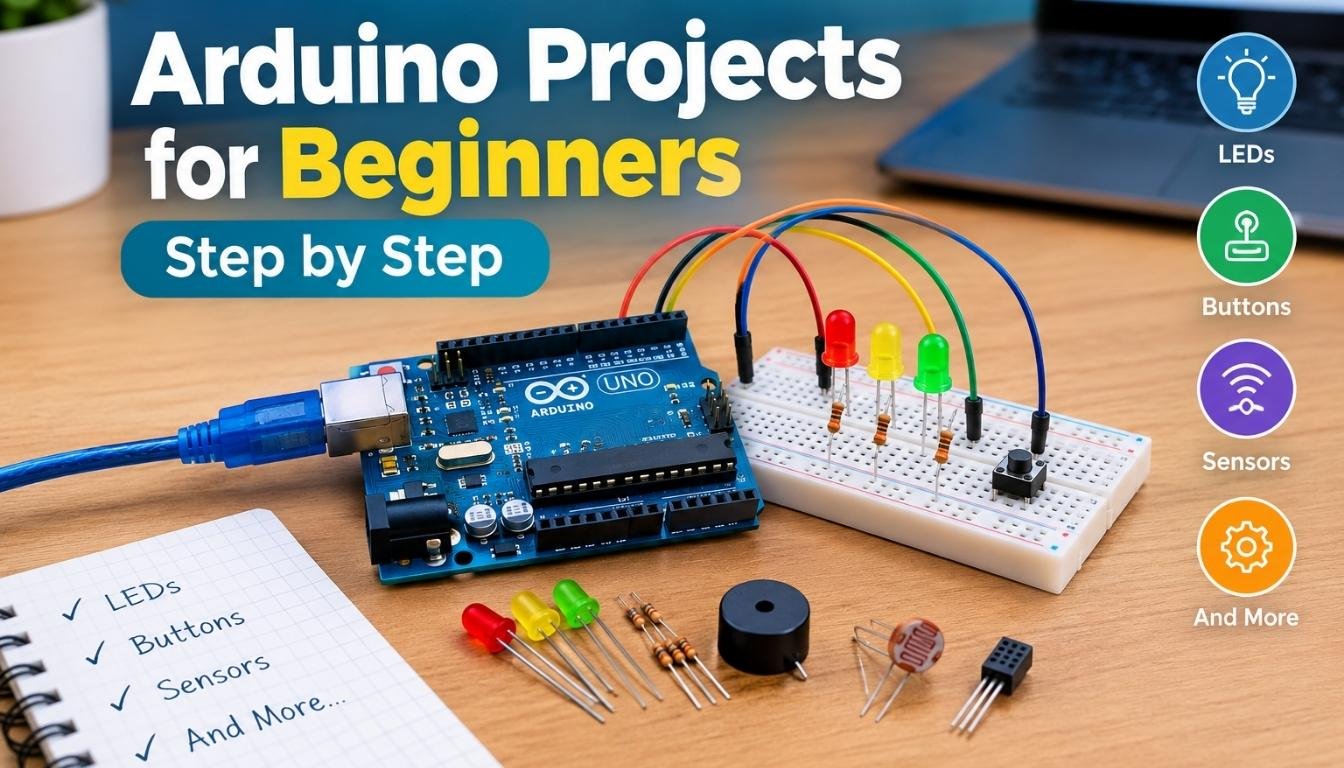
Arduino projects for beginners step by step make it easier to learn electronics and programming by building working devices. Instead of learning every coding concept before starting, you can connect a few components, upload a short program, and see how your instructions control real hardware.
You can begin with a blinking LED and gradually build a button-controlled light, a buzzer alarm, an automatic night light, and a temperature monitor. Each project introduces a new skill without requiring advanced electronics knowledge.
For your first projects, an Arduino Uno is a practical choice because it has digital and analog input pins that work with common beginner components. You will also need a USB cable, a breadboard, jumper wires, and suitable electronic components.
The best approach is to complete one project at a time. Understand why the circuit works, change one part of the code, and observe the result before moving to a more advanced build.
What You Need Before Building Your First Arduino Project
You do not need an expensive electronics lab to get started. A basic Arduino board and a small collection of components are enough for several useful beginner projects.
Essential tools and components
Arduino Uno: The main controller that runs your program and communicates with connected components.
Breadboard and jumper wires: Connect components without soldering. This makes it easier to correct mistakes and test different circuit layouts.
LEDs and resistors: Use these to learn how electrical current flows through a circuit. A suitable current-limiting resistor protects each LED.
Buttons, a buzzer, and sensors: These components let your Arduino respond to button presses, produce sounds, and measure changes in the environment.
You will also need a computer and a compatible USB data cable. Install the Arduino IDE to write, check, and upload programs to your board.
For your first builds, power the board through USB. Disconnect power before changing circuit connections.
Quick Comparison of Beginner Arduino Projects
The following projects build on one another. The time estimates are planning estimates for someone working through the instructions for the first time. Troubleshooting and component availability can affect the actual time.
| Project | Main components | Skill learned | Estimated time |
|---|---|---|---|
| Blinking LED | Built-in LED or external LED | Basic output | 10–20 minutes |
| Button-controlled LED | LED and pushbutton | Digital input | 20–35 minutes |
| Traffic light | Three LEDs and resistors | Timing and sequencing | 25–45 minutes |
| Buzzer alarm | Piezo buzzer | Sound output | 20–40 minutes |
| Automatic night light | Photoresistor and resistor | Analog input | 30–50 minutes |
| Temperature monitor | Compatible temperature sensor | Reading sensor data | 30–60 minutes |
These times assume you have the components and software ready. They are not guarantees, and a first-time setup may take longer.
1. Build a Blinking LED
A blinking LED is the simplest way to learn how Arduino code controls physical hardware. You will turn a light on, wait for a short period, turn it off, and repeat the process.
What you need
- One Arduino Uno
- One external LED and a 220-ohm resistor if you are using a breadboard
- A breadboard and jumper wires
- A USB data cable
You can skip the external components by using the built-in LED on a compatible Uno board.
Step 1. Connect the LED
For an external LED circuit:
- Connect digital pin 8 to one end of a 220-ohm resistor.
- Connect the other end of the resistor to the LED’s anode, which is usually the longer leg.
- Connect the LED’s cathode to GND.
The resistor limits current through the LED. Do not connect the LED directly between an output pin and ground.
Step 2. Write the Arduino code
const int ledPin = 8;

void setup() {
  pinMode(ledPin, OUTPUT);
}

void loop() {
  digitalWrite(ledPin, HIGH);
  delay(1000);

  digitalWrite(ledPin, LOW);
  delay(1000);
}
Step 3. Upload the program
- Open the Arduino IDE.
- Connect your board to the computer.
- Select the correct board and port.
- Click Verify to check the code.
- Click Upload to send the program to the board.
The LED should turn on for one second and off for one second repeatedly.
What you learn
setup()runs once when the program starts.loop()repeats continuously.pinMode()configures a pin as an input or output.digitalWrite()sets a digital output HIGH or LOW.delay()pauses the program for a specified number of milliseconds.
Try this next: Change both delay(1000) values to delay(250). The LED should blink faster. This small experiment helps you understand how changing one value changes the behavior of a circuit.
2. Make a Button-Controlled LED
This project introduces digital inputs. Instead of making a light blink automatically, you will control it by pressing a button.
What you need
- Arduino Uno
- One pushbutton
- One LED and a 220-ohm resistor
- Breadboard and jumper wires
Step 1. Connect the button and LED
Place the pushbutton across the center gap of the breadboard.
Connect one button terminal to digital pin 2 and the opposite terminal to GND. The code will enable the Arduino’s internal pull-up resistor.
Connect the LED circuit to digital pin 8 using the same resistor arrangement as in the previous project.
Step 2. Upload this code
const int buttonPin = 2;
const int ledPin = 8;

void setup() {
  pinMode(buttonPin, INPUT_PULLUP);
  pinMode(ledPin, OUTPUT);
}

void loop() {
  int buttonState = digitalRead(buttonPin);

  if (buttonState == LOW) {
    digitalWrite(ledPin, HIGH);
  } else {
    digitalWrite(ledPin, LOW);
  }
}
Step 3. Test the button
Press the button and observe the LED. Release the button and the light should turn off.
The INPUT_PULLUP setting keeps the input at a known HIGH state when the button is open. Pressing the button connects the input to ground, so the reading becomes LOW.
What you learn
- How Arduino reads digital inputs
- Why HIGH and LOW do not always mean pressed and released
- How
ifandelsestatements control a program - How a physical action can change a circuit’s output
Try this next: Change the program so the LED stays on after one press and turns off after the next. This introduces state tracking and is a useful step toward building a simple electronic control panel.
3. Create an Arduino Traffic Ligth
A traffic light project teaches you how to control multiple outputs in a fixed sequence. It also gives you an early introduction to timing and organized code.
What you need
- Arduino Uno
- One red LED
- One yellow LED
- One green LED
- Three 220-ohm resistors
- Breadboard and jumper wires
Step 1. Connect the LEDs
Connect the red LED to pin 8, the yellow LED to pin 9, and the green LED to pin 10. Put a suitable current-limiting resistor in series with each LED, and connect each LED’s cathode to GND.
Step 2. Upload the code
const int redLED = 8;
const int yellowLED = 9;
const int greenLED = 10;

void setup() {
  pinMode(redLED, OUTPUT);
  pinMode(yellowLED, OUTPUT);
  pinMode(greenLED, OUTPUT);
}

void loop() {
  digitalWrite(redLED, HIGH);
  digitalWrite(yellowLED, LOW);
  digitalWrite(greenLED, LOW);
  delay(3000);

  digitalWrite(redLED, LOW);
  digitalWrite(greenLED, HIGH);
  delay(3000);

  digitalWrite(greenLED, LOW);
  digitalWrite(yellowLED, HIGH);
  delay(1000);

  digitalWrite(yellowLED, LOW);
}
Step 3. Observe the sequence
The red light stays on for three seconds, followed by the green light for three seconds and the yellow light for one second. The sequence then repeats.
This is a tabletop demonstration only. It is not suitable for controlling real road traffic.
What you learn
- How to control several output pins
- How to organize a program into clear stages
- How timing affects the behavior of a system
- How to avoid leaving multiple LEDs on unintentionally
Try this next: Add a fourth LED to represent a pedestrian signal. Make it respond to a button press after you have learned how to handle button inputs.
4. Build a Simple Buzzer Alarm
A buzzer alarm introduces sound output. You can use it for a simple timer signal, a button feedback system, or a basic warning sound in a low-voltage demonstration.
What you need
- Arduino Uno
- A compatible passive piezo buzzer
- Jumper wires
- Breadboard if needed
Step 1. Connect the buzzer
Connect the buzzer’s positive terminal to digital pin 8 and its negative terminal to GND. Check the component’s specifications before connecting it, because different buzzers have different electrical requirements.
Step 2. Upload the code
const int buzzerPin = 8;

void setup() {
  pinMode(buzzerPin, OUTPUT);
}

void loop() {
  tone(buzzerPin, 1000);
  delay(500);

  noTone(buzzerPin);
  delay(1000);
}
Step 3. Listen to the result
The buzzer produces a tone at 1,000 hertz for half a second. It then remains silent for one second before repeating.
The tone() function generates a sound signal, while noTone() stops it.
What you learn
- How to produce sound from code
- How frequency changes a tone’s pitch
- How timing can control alerts
- How to combine sound output with a button or sensor
Try this next: Use different frequencies to create a short sequence of notes. Once you understand the basic circuit, you can combine the buzzer with the button from Project 2 to create a simple response system.
5. Make an Automatic Night Light
An automatic night light uses a light sensor to detect changes in the surrounding brightness. The Arduino reads the sensor and turns an LED on when the environment becomes dark.
This project introduces analog input and helps you understand how electronics can respond to changing conditions.
What you need
- Arduino Uno
- One photoresistor or light-dependent resistor (LDR)
- One 10-kilohm resistor
- One LED and a 220-ohm resistor
- Breadboard and jumper wires
Step 1. Build the light sensor circuit
Connect the photoresistor between 5V and analog input A0. Connect a 10-kilohm resistor between A0 and GND.
This creates a voltage divider that produces a changing voltage as the light level changes.
Connect the LED to digital pin 8 through a 220-ohm resistor, with the LED’s cathode connected to GND.
Step 2. Upload the code
const int sensorPin = A0;
const int ledPin = 8;

int lightLevel = 0;
int threshold = 400;

void setup() {
  pinMode(ledPin, OUTPUT);
  Serial.begin(9600);
}

void loop() {
  lightLevel = analogRead(sensorPin);

  Serial.println(lightLevel);

  if (lightLevel < threshold) {
    digitalWrite(ledPin, HIGH);
  } else {
    digitalWrite(ledPin, LOW);
  }

  delay(200);
}
Step 3. Adjust the light threshold
Open the Serial Monitor in the Arduino IDE and set its baud rate to 9600. Observe the sensor readings under bright and dim conditions.
Cover the photoresistor with your hand and see how the reading changes. If the LED responds in the opposite way or does not switch at the expected brightness, adjust the threshold.
The value 400 is an initial example, not a universal light level. Actual readings depend on the sensor, resistor, lighting, and circuit.
What you learn
- How analog inputs work
- How a voltage divider produces a sensor reading
- How to use a threshold to make a decision
- How the Serial Monitor helps troubleshoot a circuit
Try this next: Add a second LED to indicate bright conditions. This creates a simple two-state indicator and gives you more practice with conditional logic.
6. Build a Temperature Monitor
A temperature monitor introduces environmental measurement. Instead of reacting to a button or light level, your Arduino reads a sensor and converts its output into a temperature estimate.
You can later expand the project with a display, a buzzer, or data logging.
What you need
- Arduino Uno
- A compatible analog temperature sensor such as a TMP36
- Breadboard and jumper wires
- A computer with the Arduino IDE
Step 1. Connect the temperature sensor
For a TMP36, connect its power pin to 5V, its ground pin to GND, and its output pin to analog input A0.
The physical pin arrangement depends on the component and viewing orientation. Check the exact sensor’s datasheet before connecting it. Do not assume that every three-pin temperature sensor uses the same pinout.
Step 2. Upload the code
The following example is for a TMP36 connected to a standard 5-volt Arduino Uno. It assumes the sensor is powered correctly and uses the board’s default analog reference.
const int sensorPin = A0;

void setup() {
  Serial.begin(9600);
}

void loop() {
  int reading = analogRead(sensorPin);

  float voltage = reading * (5.0 / 1023.0);
  float temperatureC = (voltage - 0.5) * 100.0;
  float temperatureF = temperatureC * 9.0 / 5.0 + 32.0;

  Serial.print("Temperature: ");
  Serial.print(temperatureF);
  Serial.println(" F");

  delay(2000);
}
Step 3. View the readings
Open the Serial Monitor and set the baud rate to 9600. The Arduino should display a temperature reading in degrees Fahrenheit approximately every two seconds.
If the reading is far from the expected room temperature, check the sensor pinout, power supply, analog reference, and wiring. The example conversion is specific to a TMP36. Other sensors require different calculations.
What you learn
- How analog-to-digital conversion works
- How to convert a sensor voltage into a useful measurement
- How to display information through serial communication
- Why the sensor model matters when writing code
Try this next: Add an LED that turns on when the measured temperature exceeds a chosen threshold. Remember that a simple sensor reading is not a calibrated thermometer and should not be used as a safety-critical temperature control.
How to Approach Arduino Projects for Beginners Step by Step
Once you have completed a few builds, focus on understanding the process rather than copying more code. A repeatable workflow will help you solve problems independently and create your own projects.
Step 1. Understand the purpose of the circuit
Before connecting anything, identify what the project should do.
For example, an automatic night light needs to detect brightness and control an LED. That means the circuit needs a sensor input and a light output.
Writing down the expected behavior helps you recognize mistakes later.
Step 2. Check the component specifications
Look at the voltage requirements, pin arrangement, and current limits for every component.
For a standard Arduino Uno Rev3, the operating voltage is 5V, and the recommended operating current for each digital I/O pin is 20 mA. These limits matter when connecting LEDs, buzzers, sensors, and other devices.
Never assume that a component is compatible just because its wires fit into the breadboard.
Step 3. Build and test one section at a time
Start with the simplest working circuit. Confirm that it behaves as expected before adding another component.
For example, test the LED output before connecting the light sensor. If the completed night light does not work, you can then investigate the sensor circuit without wondering whether the LED circuit is also faulty.
Step 4. Read the code instead of uploading it blindly
Understand what each important function does.
pinMode()sets the purpose of a pin.digitalRead()reads a digital input.analogRead()measures an analog input.digitalWrite()changes a digital output.ifandelsemake decisions.delay()pauses execution for a specified time.
You do not need to memorize every function. Learn the ones used in your current project and practice changing their values.
Step 5. Troubleshoot with evidence
When a project fails, check the simplest causes first.
- Confirm that the board receives power.
- Verify the board and port selected in the IDE.
- Inspect the wiring against the circuit instructions.
- Check the LED polarity and resistor placement.
- Confirm that the component matches the code.
- Read compiler errors and inspect sensor values in the Serial Monitor.
The Arduino IDE provides built-in examples, including Blink, analog reading, digital reading, and button control. These are useful starting points when you need to isolate a problem.
Arduino Documentation
Which Arduino Board and Learning Kit Should You Choose?
The best starting setup depends on whether you want to learn basic electronics, build connected devices, or experiment with minimal hardware.
Arduino Uno Rev3
A straightforward choice for learning basic circuits, digital inputs, analog sensors, and introductory C++ programming. Its 5V operation and familiar pin layout suit many traditional beginner tutorials.
Arduino Uno R4 WiFi
Consider this board if you want to start with traditional circuits and later explore built-in Wi-Fi, Bluetooth Low Energy, and its LED matrix. Check each tutorial for board-specific requirements.
Arduino Starter Kit R4
A convenient option if you prefer a collection of compatible components and structured project lessons rather than buying each part separately. The kit includes guided projects and hardware for learning through experimentation.
What matters more than buying the most powerful board?
For basic learning, prioritize these factors:
- Tutorial compatibility: The board should match the code and wiring instructions you intend to follow.
- Included components: A kit with LEDs, resistors, buttons, and sensors can reduce the need for separate purchases.
- Expansion options: Choose additional features based on projects you actually want to build.
- Documentation: Clear wiring diagrams and working code are more valuable to a beginner than advanced specifications.
You can learn the fundamentals without buying the newest board. Start with a setup that makes it easy to understand and test each concept.
Common Beginner Mistakes and How to Fix Them
Even a short Arduino program can fail because of a small wiring or configuration error. These checks can save time.
| Problem | Likely cause | What to check |
|---|---|---|
| LED does not light | Reversed LED or incorrect wiring | Check polarity, resistor, pin number, and GND |
| Code will not upload | Wrong port or board selection | Select the connected board and correct port |
| Computer does not detect board | Charge-only USB cable or connection issue | Try a compatible data cable and another USB port |
| Button behaves unpredictably | Incorrect wiring or floating input | Check INPUT_PULLUP connections |
| Sensor readings do not change | Incorrect sensor wiring or wrong pin | Check the component datasheet and analog input |
| Temperature reading is incorrect | Wrong conversion formula or pinout | Verify the sensor model and its specifications |
| Program runs differently than expected | Incorrect logic or timing | Test one section at a time and inspect variable values |
A useful troubleshooting habit is to change only one thing at a time. If you replace several wires and rewrite the code simultaneously, you may fix the problem without discovering what caused it.
Frequently Asked Questions
What is the easiest Arduino project for a complete beginner?
A blinking LED is usually the easiest starting point. It requires very little hardware and teaches basic programming concepts such as outputs, functions, and timing. Once it works, you can progress to button inputs and sensor-based projects.
Can I build Arduino projects without prior coding experience?
Yes. Start with short sketches that use a few functions, then change one value at a time to see what happens. You can learn programming concepts alongside electronics rather than mastering an entire language first.
What is the cheapest way to start learning Arduino?
If you already have a compatible board and USB cable, begin with the built-in LED and free Arduino IDE. For external circuits, a breadboard, jumper wires, a few LEDs, and suitable resistors provide a useful starting collection. Compare complete kit prices with the cost of individual components before buying.
How long does it take to complete a beginner Arduino project?
A simple LED project may take around 10 to 20 minutes once the board and software are ready. Projects involving sensors or several components can take longer, especially when you are learning to read circuit diagrams or troubleshoot wiring.
What should I build after the first few Arduino projects?
Move from basic outputs to inputs and then to projects that combine both. A good sequence is a blinking LED, a button-controlled light, a traffic light, a buzzer alarm, and an automatic night light. A temperature monitor is a useful next step for learning sensor measurements.
Are Arduino projects for beginners step by step suitable for students?
Yes. They can help students practice programming, problem-solving, basic electrical concepts, and logical thinking. Choose projects appropriate for the student’s age and experience, use low-voltage circuits, and supervise younger learners during construction.
Can Arduino work without a computer after uploading the code?
Yes. Once a sketch has been uploaded, the board can normally run it independently whenever it receives suitable power. A computer is useful for writing code, uploading changes, and viewing serial output, but it does not need to remain connected for every standalone project.
Choose Your Next Project Based on the Skill You Want to Learn
You do not need to build every project at once. Choose the next one according to the skill you want to practice.
- For basic programming: Build the blinking LED and experiment with timing.
- For digital logic: Build the button-controlled LED and practice
ifstatements. - For sequencing: Create the traffic light and control several outputs.
- For sensor skills: Build the automatic night light and learn to interpret analog readings.
- For measurement: Create the temperature monitor and convert sensor data into useful values.
The most useful Arduino projects for beginners step by step are the ones that help you understand why a circuit works, not just how to reproduce it. Complete one build, test it, make a small improvement, and use the skills you gain to develop your next project.